-
Shop
- Advanced Technologies
- AI Career Advantage Collection
- AI Skills
- AI Skills for Creators & Freelancers
- AI Client Management
- AI Ethics
- AI Mindset
- AI Tools & Prompts
- AI Writing & Content Creation
- Audio, Voice & Music
- Design & Visual Creation
- Email, Messaging & Communication
- Freelancing & Business
- Marketing, Ads & Conversion
- Productivity, Workflow & Automation
- SEO & Search Optimization
- Social Media Content & Growth
- Strategy, Planning & Analytics
- Video Creation & Editing
- Bathroom
- Beauty
- Best-Sellers
- Car Accessories
- Car Buying & Ownership
- Confidence
- Dating & Social Skills
- Digital Resources
- AI & Technology
- Budgeting & Saving
- Cozy Feast Collection
- Electronics & Technology
- Emotional Intelligence
- Entrepreneurship & Business Growth
- Financial Education
- Financial Independence
- Financial Mindset & Psychology
- Goal Setting
- Hobbies
- Kitchen & Recipes
- Leadership
- Mindfulness
- Mindset
- Motivation
- Online Business
- Positive Thinking
- Productivity
- Self Confidence
- Sleep Improvement
- Smart Life with AI
- Stress Management & Relaxation
- Travel Planning
- Yoga & Fitness
- Yoga & Mind-Body Practices
- Education & Learning
- Family & Parenting
- Gadgets
- Health & Beauty
- Health & Wellness
- Home & Garden
- Home Styling & Organization
- Home Supplies
- Kids & Babies
- Legend Footwear Brands Collection
- Online Business for Beginners
- Parenting & Child Development
- Patio, Lawn & Garden
- Personal Growth
- Personal Style & Fashion
- Pet Care
- Pet Lifestyle & Wellness
- Pet Supplies
- Pets
- Smart Amazon Shopping
- Stress Relief & Relaxation
- TikTok Growth & Monetization Mastery
- Travel
- Travel & Adventure
- Wealth
- Wellness
- Popular
- Best deals
Best Free App to Stop Using Your Phone: Try ScreenZen
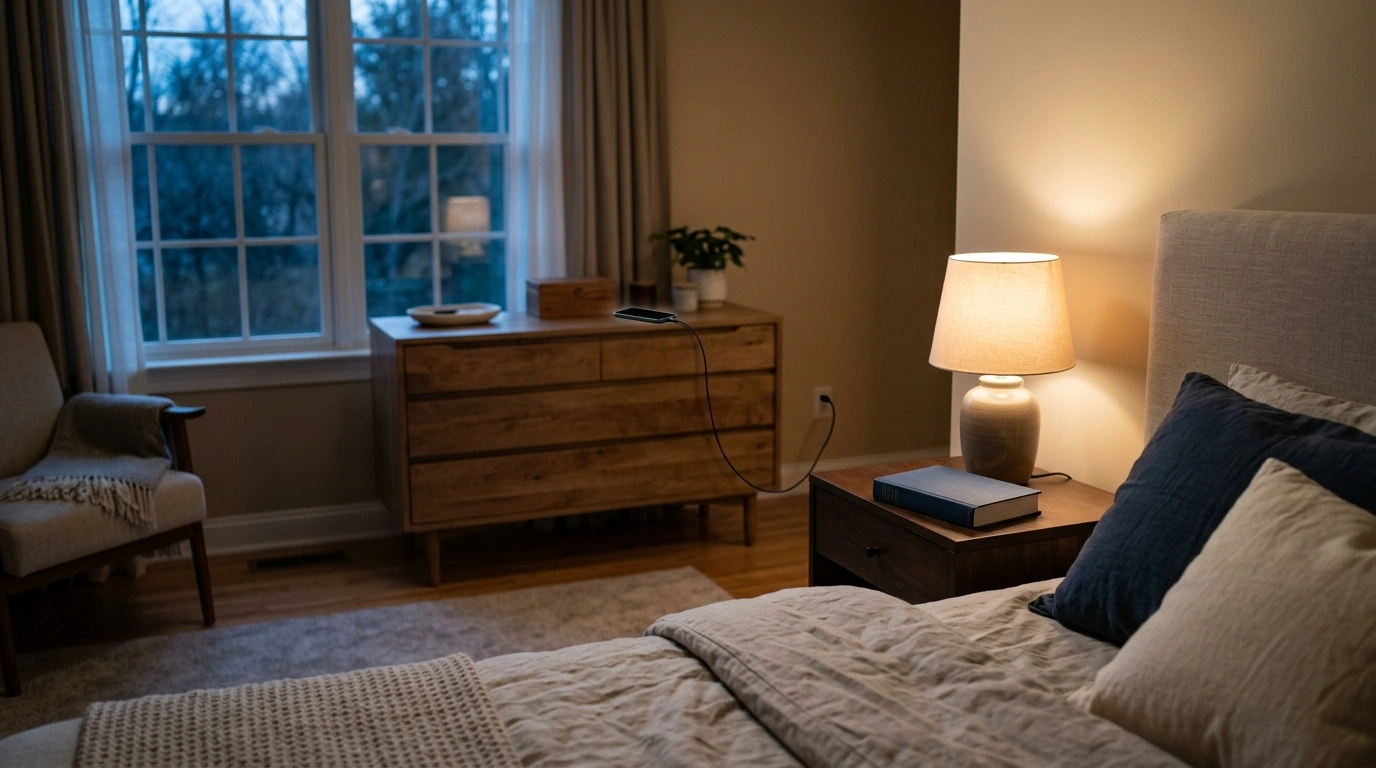
What is the best free app to stop using my phone?
If you want one free app to try first, we recommend ScreenZen. It lets you put a pause between opening a distracting app and using it. That small interruption gives you a chance to decide whether you meant to pick up your phone or reached for it automatically.
Start with the one or two apps that take the most time you wish you’d spent elsewhere. Set a pause for each one, then use ScreenZen’s limits if you need a firmer boundary. You do not have to block everything at once. A setup you can live with is more useful than a strict setup you turn off after a day.
When is ScreenZen a good fit?
Choose it if you keep opening the same apps without a clear reason, especially during short breaks or before bed. Its pause is a good first step when you still need access to your phone for calls, messages, maps, or work. Leave essential apps available so the boundary does not get in your way when you need your phone.
If your main goal is to spend less time scrolling at night, set your limits before your usual wind-down time—not once you are already deep in a feed. Our 7-day guide to stopping nighttime phone scrolling can help you pair that app setting with a repeatable evening routine.
What if you do not want another app?
Use the free tools already on your phone: Screen Time on iPhone or Digital Wellbeing on Android. Both offer ways to see where your time goes and set app limits. They are a practical choice if you want fewer downloads or prefer to start with a simple daily cap.
Whichever tool you choose, give it one clear job. Pick a specific app and a specific window, such as social media after 9 p.m. Try that boundary for a few days, then adjust it if it is too easy to bypass or too restrictive to keep. Our team favors a setting that helps you pause and choose over one that asks you to stop using your phone altogether.
FAQ
How can I make an app blocker harder to ignore?
Put the distracting app behind a pause or limit, remove it from your home screen, and turn off its nonessential notifications. Keep calls and other essential functions easy to reach so you are less tempted to disable the whole setup.
Recommended for you


Questions to Ask a Pet Sitter Before You Book
Oct 25, 2026













Leave a comment